
OmniForge Drop is the easiest way to add files. Files copied into the drop folder are ingested into the active workspace and become available to the Assistant after indexing.
Add files
- Open Knowledge.
- Select the workspace that should receive the files.
- Choose Open Drop Folder.
- Copy files into that folder.
- Return to OmniForge and wait for the file status to update.
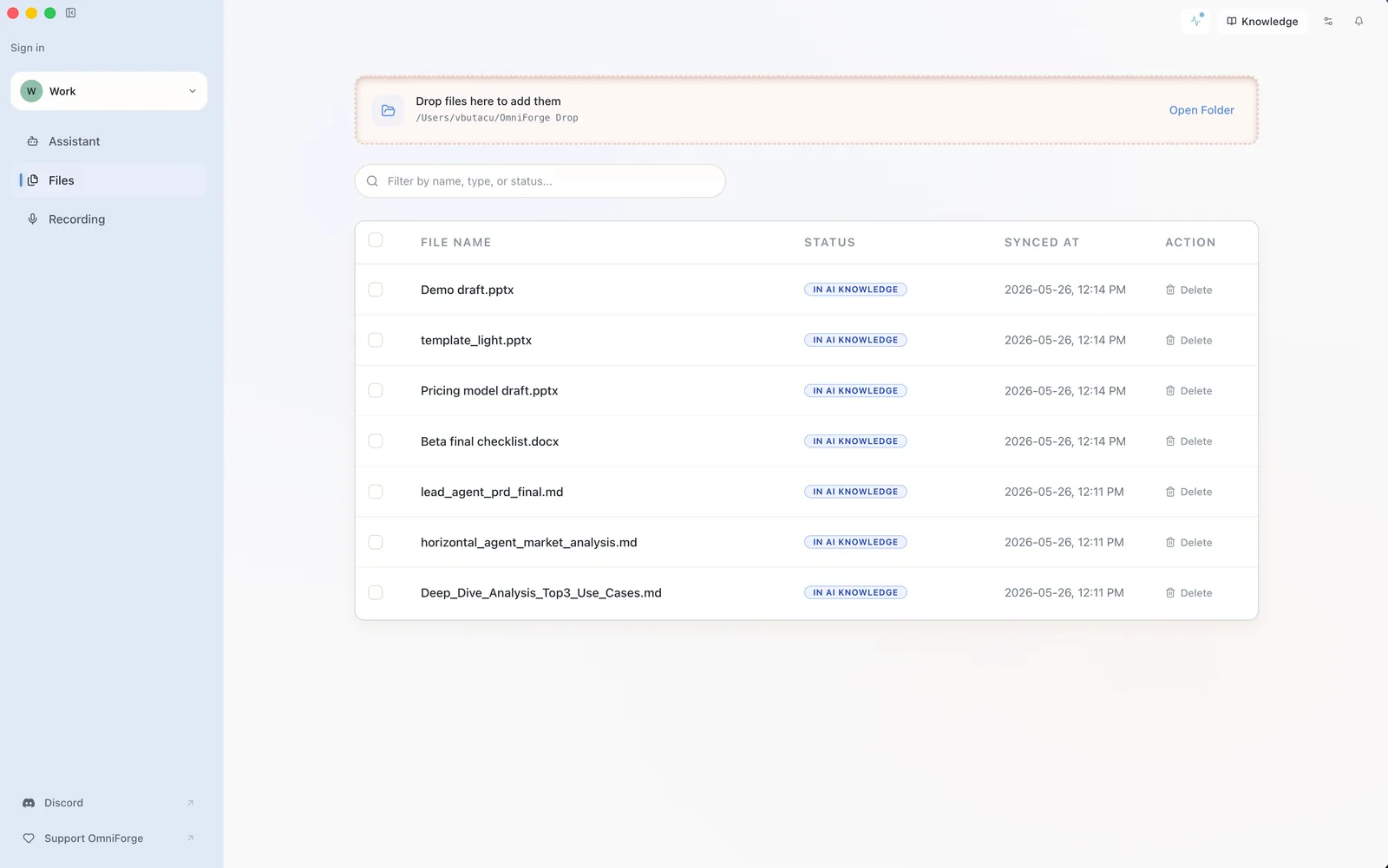
Copy files instead of moving originals when you want to keep your existing folder structure unchanged.
Drag files into Knowledge
You can also drag supported files onto the Knowledge page. OmniForge copies them into the drop folder so your originals stay where they are.
If a file is skipped, check the supported file types. Unsupported files are not indexed.
Keep batches manageable
For the clearest first experience, add related files in small batches. For example, add one client folder, one research topic, or one project packet at a time.