
The Transcription page keeps a history of recording sessions. Use it to reopen transcripts, rename sessions, add them to knowledge, or delete sessions you no longer need.
Find a session
Use search and filters to find sessions by title, mode, status, language, or date.
Clear session names make history easier to use. OmniForge can automatically generate descriptive titles for recordings (toggle available in recording settings, enabled by default). You can also manually rename important sessions after they finish.
Open a session
Open a session to review transcript text, audio playback, and available actions.
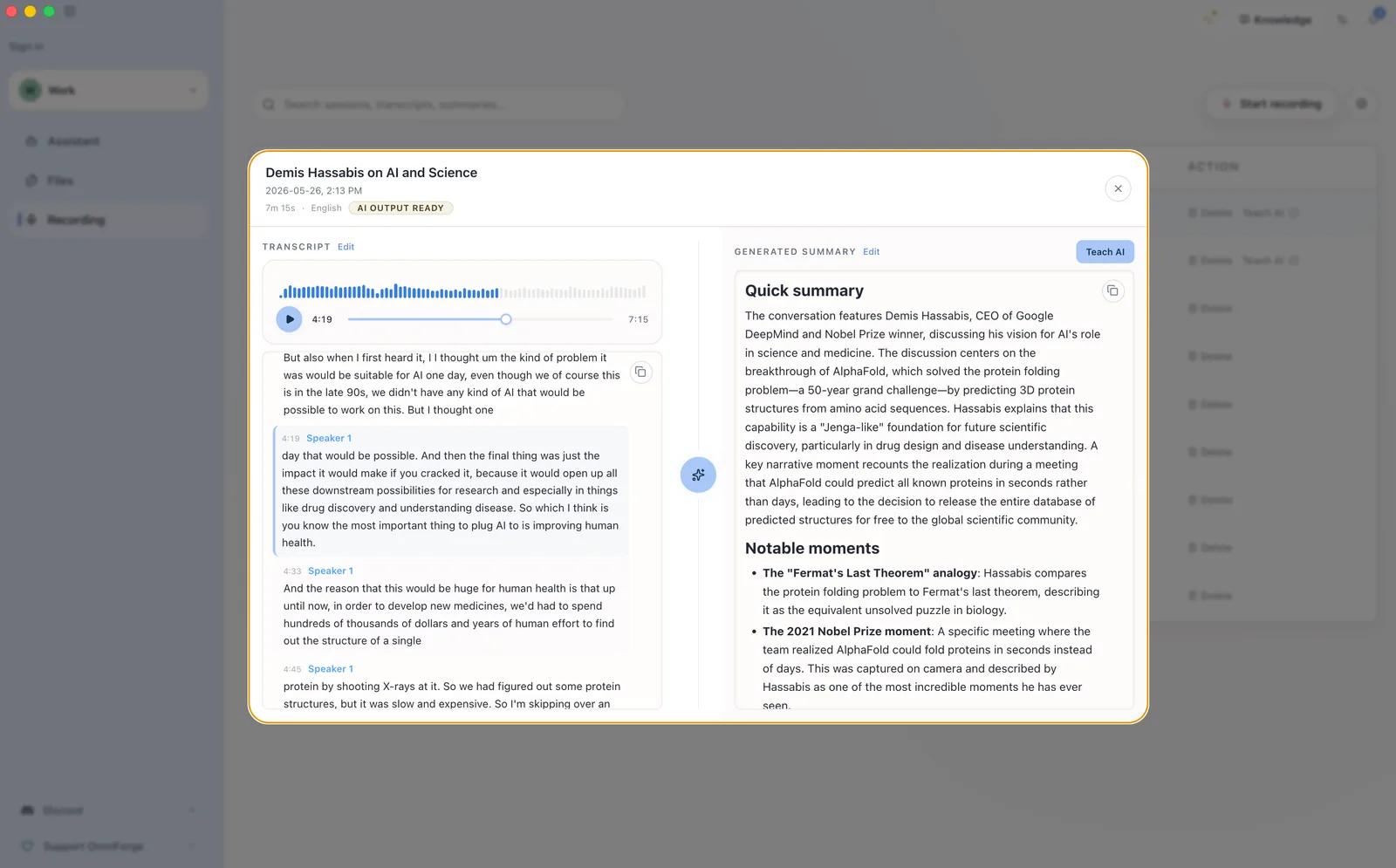
If a session is still processing, wait until it is ready before editing or indexing it.
Delete a session
Delete sessions you no longer need. This action cannot be undone, so confirm you have selected the right recording before continuing.