
Files become useful after OmniForge indexes them. Indexing reads the file, breaks it into searchable pieces, and stores the result in your local knowledge base.
Add a small first batch
- Open Knowledge.
- Open your OmniForge Drop folder.
- Copy two or three supported files into the folder.
- Return to OmniForge.
- Wait for each file to show a Complete or In AI Knowledge status.
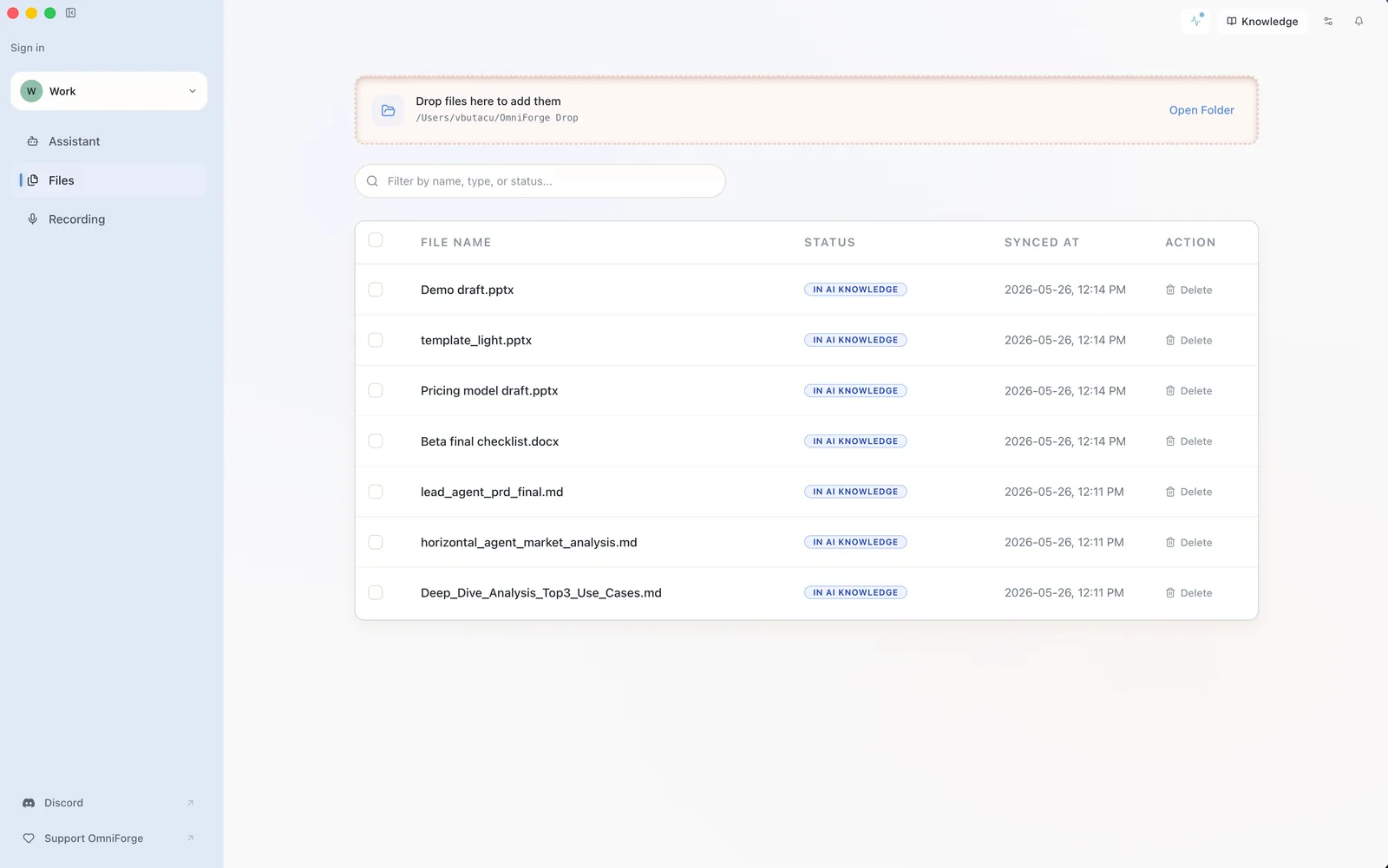
Use files you already understand for the first test. That makes it easier to judge whether answers are grounded and useful.
What to add first
Good first files:
- A short PDF.
- A meeting agenda.
- A Markdown or text note.
- A CSV or spreadsheet with simple rows.
Avoid starting with hundreds of files. Large batches take longer and make troubleshooting harder.
Check the status
In Knowledge, the file table shows whether a file is Queued, Processing, Complete, Failed, Duplicate, or Unsupported. If a file fails, open the action menu and retry it after checking that the file type is supported.
When files show In AI Knowledge, ask the Assistant one focused question about them.